Break scene & “Be right back”
Last updated: July 1, 2026
To cover a break cleanly, use two layers: switch OBS to a Break scene to cover Facebook & Instagram, and raise Streamster’s “Be right back” slate to cover your watch page. Both together give viewers a professional pause on every screen — and your store stays shoppable the whole time.
Need a moment — a bathroom break, a package to grab, or an Instagram key to refresh? Cover every screen at once. There are two layers, and using both gives your viewers a clean, professional “be right back” everywhere:
- Your OBS break scene — covers Facebook & Instagram, because OBS is the single source Streamster fans out to both.
- Streamster’s break slate — covers your watch page (
/shop/your-link) with a branded “Be right back.”
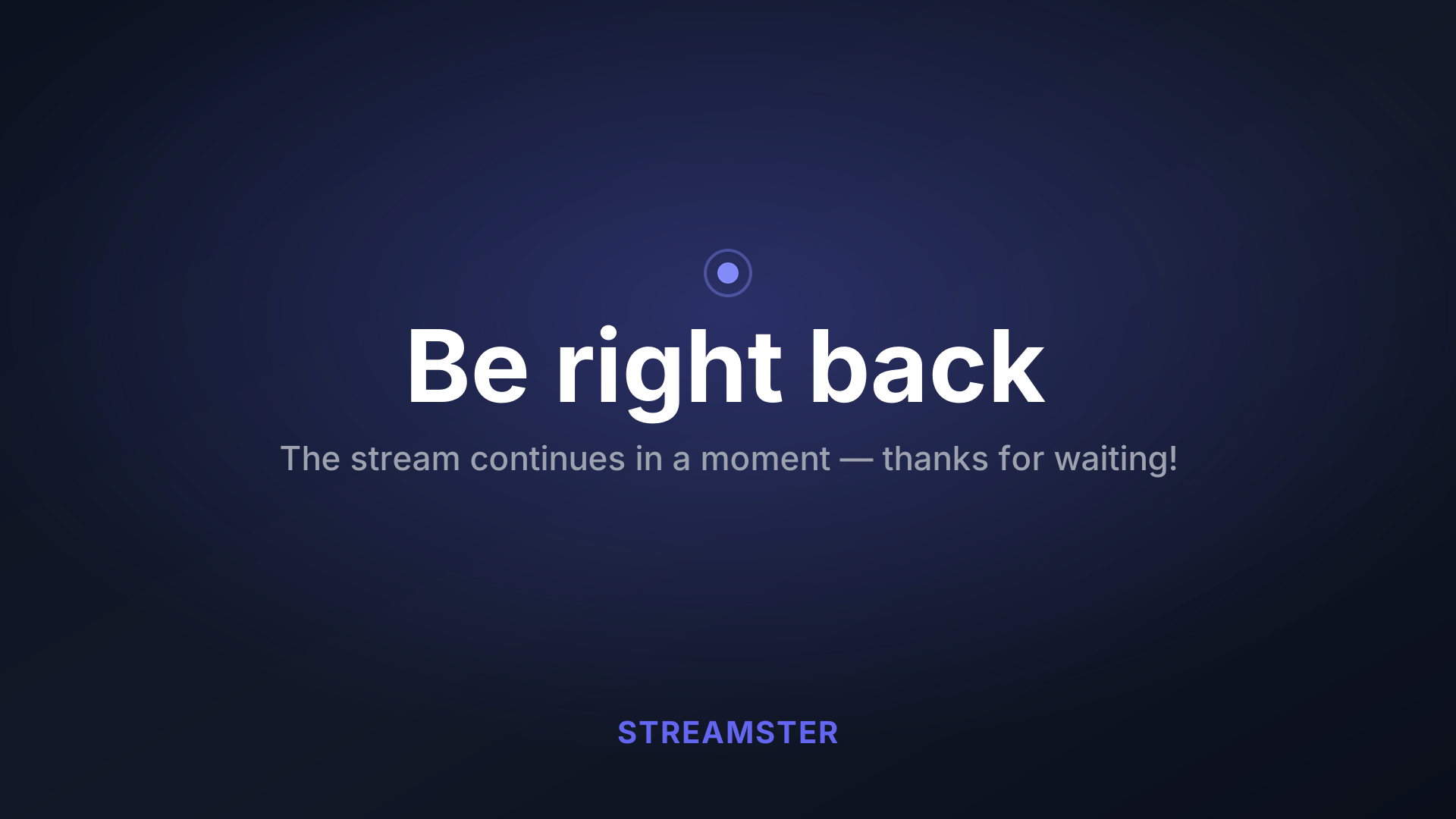
1920×1080. Drop it straight into OBS as an Image source, or open it and export a PNG/JPG if your OBS build prefers raster images.
Set up your OBS break scene (once)
- In OBS, under Scenes, click + and name it “Break”.
- With the Break scene selected, under Sources click + → Image.
- Choose the downloaded
streamster-break-scene.svg(or your own cover) and click OK. - Optional: add your logo or a Text source (“Back in 5!”) and some music.
- That’s it — you now have a Live scene and a Break scene to switch between.
When you refresh Instagram
Instagram keys last about 60 minutes. When you tap Refresh Instagram in your dashboard:
- Switch OBS to your Break scene first. This covers Facebook & Instagram during the short reconnect.
- Streamster automatically raises the “Be right back” slate on your watch page for the reconnect gap.
- Paste your fresh Instagram key and confirm. Facebook’s key is kept — it briefly reconnects and resumes.
- When the stream is back, switch OBS back to your Live scene. The watch-page slate clears itself automatically.
Honest heads-up: because Instagram keys can only be swapped while the stream is briefly idle, Facebook sees a short (~15–30s) reconnect too — it is never dropped, just paused, and resumes on its own. Your break scene makes that gap look intentional.
Take a manual break anytime
- In the dashboard go-live panel, find “Be right back” slate and click Show slate (add an optional message).
- Switch OBS to your Break scene so Facebook & Instagram match.
- When you’re back, click End break and switch OBS to your Live scene.
Your watch page stays fully shoppable during a break — orders still go through.
See also: Go live in 5 minutes · Connecting Facebook & Instagram